Quick Navigation
1. Overview
The BEA Battle Scheduler manages TikTok PK battle schedules. Everything you do here saves straight away, and Google Calendar and this scheduler keep each other up to date.
Key Features
- Dashboard - Stats, filters, and battle table
- Calendar - Monthly view with color-coded battles
- Google Calendar Sync - Confirmed battles auto-create timezone-aware events, and anything you schedule, move or delete in Google Calendar comes back here
- Discord Posts - Generate formatted posts for matchmaking
- Battle Posters - Generate a branded "Agency Battle" graphic for confirmed battles
- Region Color Coding - Blue = US/CA+, Red = UK+
2. Switching Regions
Click the US/CA+ or UK+ tab at the top. The interface turns blue for US or red for UK so you always know which region you're in.
Each region has its own battle data, creator roster, Google Calendar, and timezone defaults (EST for US, GMT for UK).
3. Dashboard
Timeframe Toggle
Controls both stats and the table: Monthly (default), 30-Day Rolling (today + 30 days), or All Time.
Stats Bar
Shows Total, Confirmed, Pending, Unfilled, and Upcoming (7 days) counts for the selected timeframe.
Battle Table
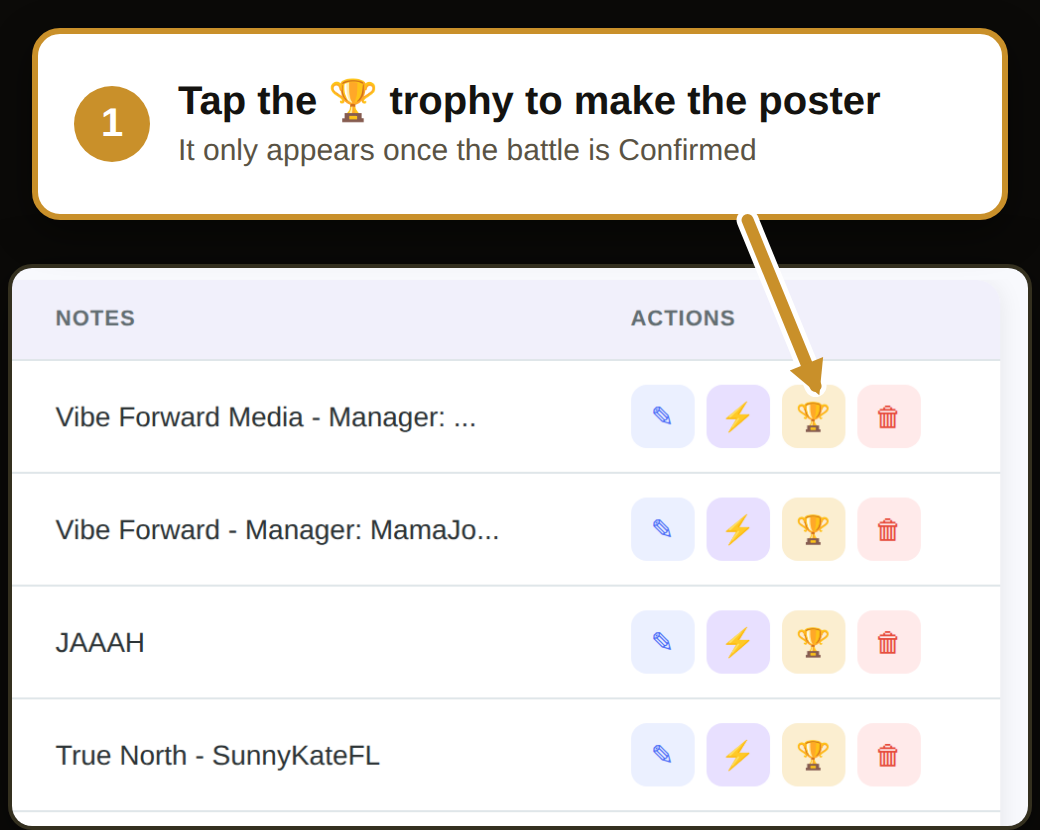
All battles with date, time, username, type, power ups, diamonds, status, opponent, network, notes, and action buttons (edit, Discord post, poster, delete). Click any column header to sort. The poster button (🏆) appears only on Confirmed battles.
4. Adding a Battle
Scheduling Recurring Battles
To set up a repeating battle, use the Repeat dropdown in the form:
- Does not repeat - a single battle (default).
- Daily / Weekly / Every 2 weeks / Monthly - creates a series starting from the Battle Date.
When a repeat option is selected, choose how the series Ends: either After a set number of times (e.g. 4) or On date (repeats up to and including that date). Saving creates a separate battle for each occurrence, all sharing the same time, type, and other details.
Battles created together share a series ID, so the app knows they belong to the same recurring run. Series battles show a 🔁 marker next to the date in the table, and the detail popup shows their position in the series (e.g. "1 of 4").
5. Editing a Battle
Click the pencil icon in the Actions column. Make your changes, then click Save Battle.
Editing a Recurring Series
When you edit a battle that belongs to a series (marked with 🔁), a Recurring Series panel appears with two options:
- Apply changes to entire series - tick this box before saving to push your edits (time, type, status, opponent, etc.) to every battle in the series. Each battle keeps its own date.
- + Add occurrence - opens the form pre-filled from this series with the next date suggested, so you can append another battle to the run. You can change the date, and you may even use the Repeat option to add several at once - they all stay in the same series.
6. Changing Status
Click the Confirmed or Pending badge directly in the table to toggle it instantly.
7. Deleting a Battle
Click the trash icon in the Actions column and confirm.
8. Calendar View
Click the Calendar tab to see a monthly grid. Green = Confirmed, Yellow = Pending. Click a battle for details, or click a date to filter the dashboard.
9. Google Calendar
Click the Google Calendar tab for an embedded view of the region's calendar.
Scheduler → Calendar
- Only Confirmed battles create calendar events
- Changing to Pending or deleting removes the event
- Events are timezone-aware (e.g., 3:00 PM PST shows as 6:00 PM EST)
- Confirming a battle also attaches its poster (🏆) to the event automatically
Calendar → Scheduler
The calendar is not just a copy — what you do there comes back here.
- Add an event in Google Calendar and it becomes a battle. Title it @creator vs @opponent and both sides are filled in for you; anything else comes in as Pending with the title kept in the notes for you to finish.
- Drag an event to a new time and the battle's date and time follow it, still written in the creator's own time zone.
- Delete an event in Google Calendar and the battle drops back to Pending. The battle itself is never deleted — its notes, diamond range and original request are kept.
This runs on its own every 15 minutes. If you have just changed something in Google Calendar and want it here now, click ↻ Sync Calendar at the top of the page — it tells you what it changed, or that everything already matches.
10. Discord Posts
Click the lightning bolt ⚡ on any battle to generate a formatted matchmaking post. Edit if needed, then Copy to Clipboard and paste into Discord.
Bulk Posts
Select multiple battles using the checkboxes, then click the Discord Post button in the toolbar to generate a combined post for all selected battles.
11. Battle Posters
Turn a confirmed battle into a ready-to-post "Agency Battle" graphic — auto-filled with the matchup, the date, every time zone, and the creators' photos. The BEA creator is always on the left, the opponent on the right.
What is what
Two spots on the Battle Scheduler do all the work:
Making a poster
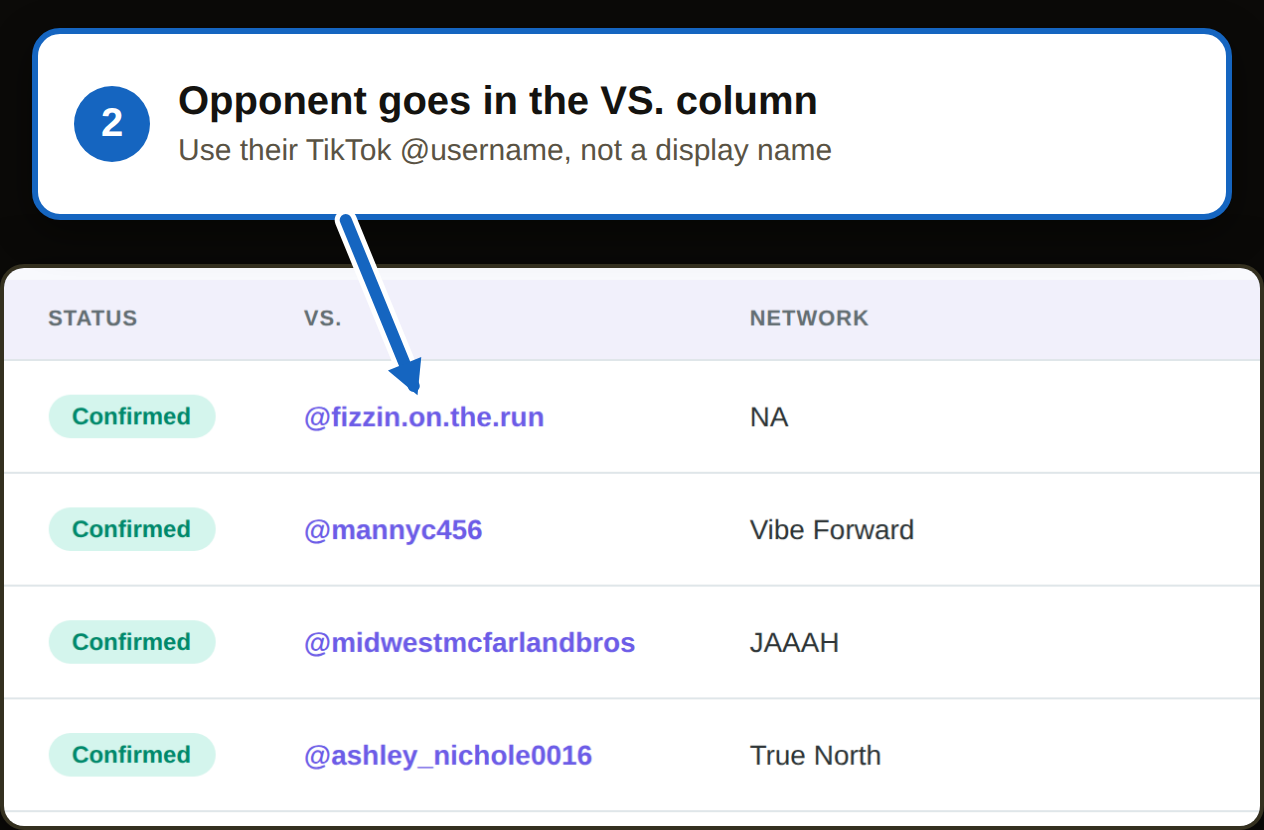
- Confirm the battle. Set its status to Confirmed — you'll need an opponent filled in first. The 🏆 trophy then appears in the Actions column (and in the calendar detail popup).
- Tap the trophy. The poster opens with the BEA creator on the left, the opponent on the right, and everything filled in.
- Check the photos loaded. Both circles should show the creators' TikTok profile pictures. If one is blank, see Photos below.
- Download and post. On iPhone, Download opens the Share sheet so you can save it or send it straight to your socials.
Photos
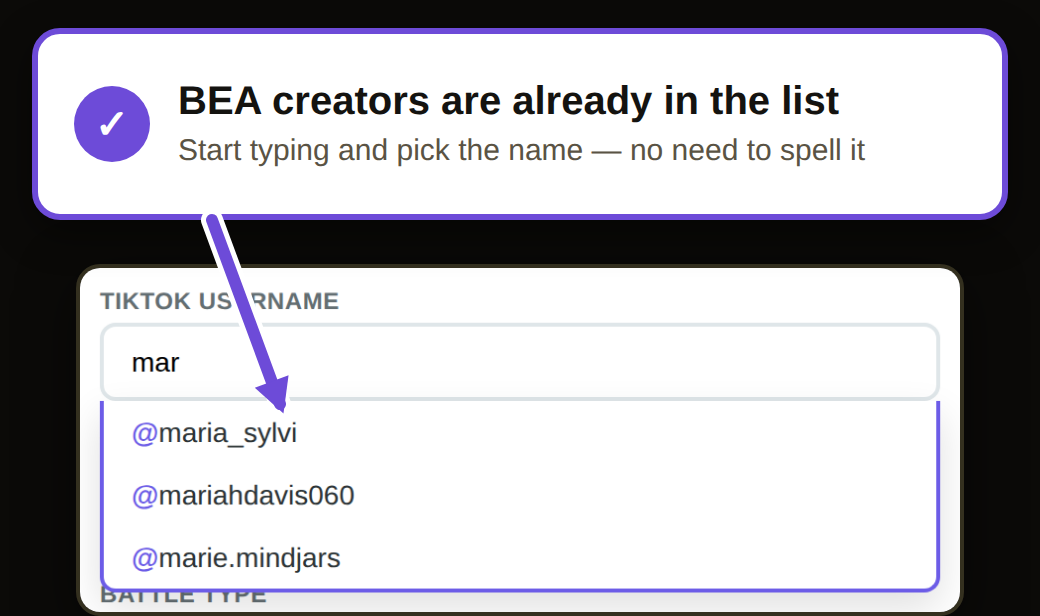
Both profile pictures load on their own and are cropped to fill the gold circles. If the opponent's circle is blank, the handle is usually a display name or misspelled — fix it in the VS. field and it re-pulls. Opponents outside BEA sometimes can't be pulled — click Photo to upload one by hand (this also overrides the auto-pulled picture).
Times
- Every poster lists PT · MT · CT · ET · UK so no one has to do the math.
- The zone the battle was set in shows first (UK first for UK battles).
- If a zone lands on the next day, it drops to its own line with that day (e.g. "SUN AUG 23 · 2 AM UK").
- On-the-hour times skip the :00 — it reads "9 PM", not "9:00 PM".
What the poster looks like
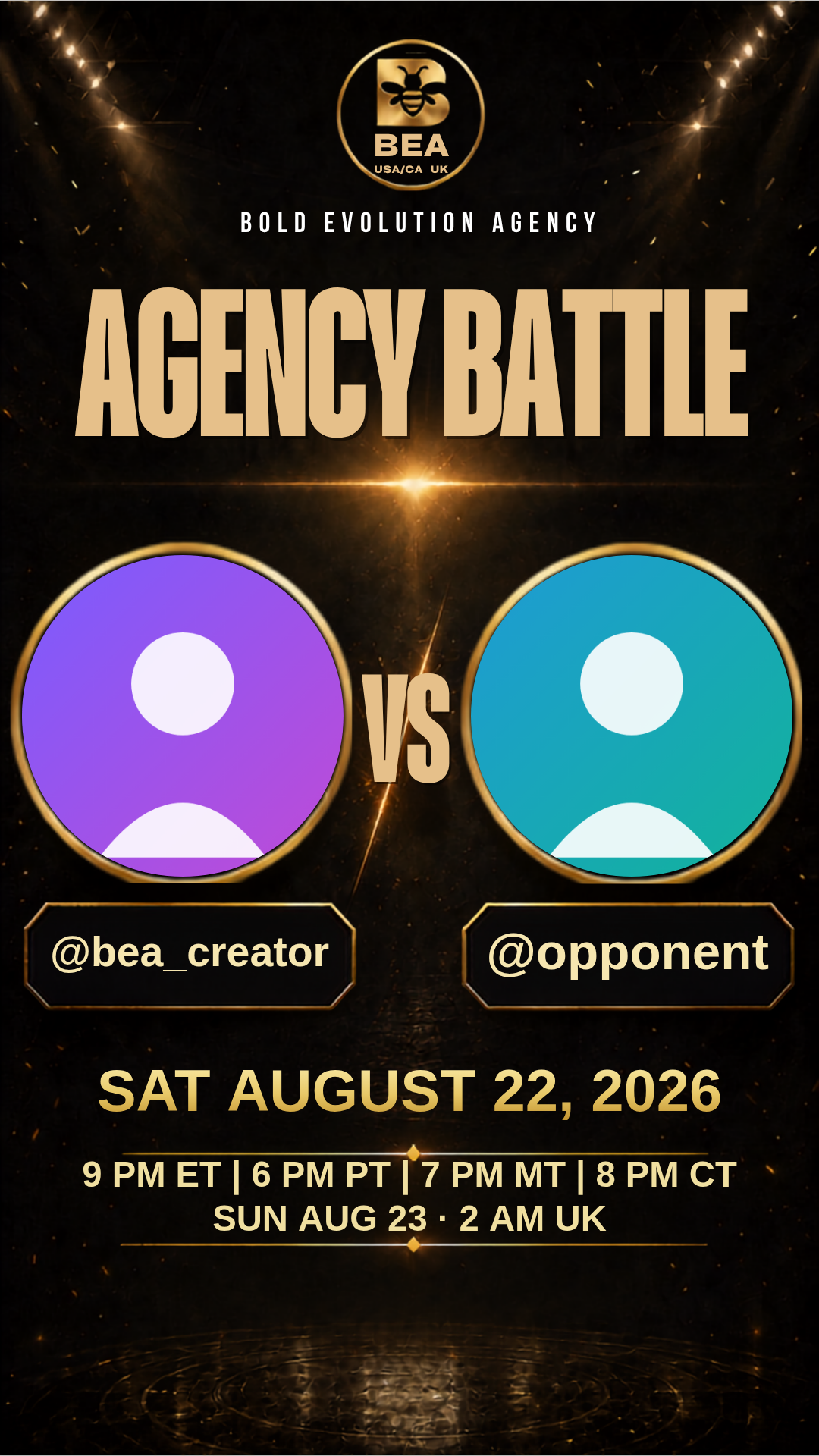
Full date with the day of week ("SAT AUGUST 22, 2026"), both handles under the photos, and all five time zones. Example only — real photos are pulled from the creators' TikTok profiles.
If the battle is part of a recurring series, the poster shows a small "SERIES" banner in the top-left corner. Standalone battles have no banner.
Saving the Poster
Download PNG saves a 1080×1920 image ready to post to TikTok / Stories. Copy Image puts it straight on your clipboard (where supported).
12. Managing Creators
Click Manage Creators in the header to add or remove usernames from the creator dropdown. Each region has its own roster — make sure you're on the right tab first.
13. Searching and Filtering
- Status filters: All, Confirmed, Pending, or Unfilled
- Search box: Filter by creator or opponent name
- Date range: Use the From/To date fields to narrow by date
14. Export and Import
Export CSV downloads the current region's data. Import CSV adds battles in bulk from a CSV file.
15. Troubleshooting
"Loading battles..." won't go away
Refresh the page. If it persists, check your internet connection.
Teammate can't see my changes
They need to refresh their page. There's no auto-refresh.
Accidentally deleted a battle
Ask an admin to look up the old values in the Google Sheet's version history (File > Version history), then re-add the battle here. Read the sheet to find out what it said — never type the battle back into it.
Opponent link isn't clickable
Use a full TikTok URL: https://www.tiktok.com/@username
Can multiple people edit at once?
Yes. If two people edit the same battle simultaneously, the last save wins.
Bold Evolution Agency - Battle Scheduler v1.0
Questions? Reach out to Bea@boldevolution.net
← Back to Battle Scheduler